> For the complete documentation index, see [llms.txt](https://docs.storylane.io/llms.txt). Markdown versions of documentation pages are available by appending `.md` to page URLs; this page is available as [Markdown](https://docs.storylane.io/editing-demos/adding-and-editing-guided-steps.md).
# Adding and Editing Guided Steps
Guides form the foundation of interactive demos and product tours.
* [Guide options](#guide-options)
* [Adding guides](#adding-guided-steps)
* [Editing guides](#editing-guided-steps)
### 👉 Guide options
Here’s a list of guides that Storylane supports, along with details on how each one works. Note that you can only add one guide per step.
| Guide options | How it works | Examples |
| --------------------------------------- | ----------------------------------------------------------------------------------------------------------------------------------------------------------------------------------------------------------------------------------------------------------------------------------------------------------------- | ------------------------------------------------------------------------------------------------------------------------------------------------------------------------------------------------------------------------------------------------------------------------------------------------------------------------------------------------------------------------ |
|
Hotspots
| Pulsating spots designed to draw attention to key parts of your demo. Hotspots may be accompanied by text as well. |
Clari - Customer Example
|
|
Tooltips
| Combine tooltips with backdrops to guide users through complex work flows. |
Gong - Customer Example
|
|
Text modal
| Text modals used to introduce your demos or summarize key points. Consider using them at the start or end of your demo. |
Outreach - Customer Example
|
|
Media modal
| Media modals showcase various media formats and text, including images, videos, and GIFs. It's a great option to improve visual aesthetic |
Cascade - Customer Example
|
|
Lead form
| Use lead forms to capture leads at strategic points in your demo. You can either use Storylane's own form or [embed custom forms](/analytics-and-performance/capture-leads.md) (**Hubspot**, **Marketo**, or **Pardot**) or capture leads through [demo URL params](/analytics-and-performance/capture-leads.md). |
Stairwell - Customer Example
|
|
No Guide
|
Don't want a guide? Click the trash can icon to delete the guide.
Viewers can click anywhere to continue, although a guide is recommended (:
| |
{% hint style="info" %}
In HTML demos you need to drag guides onto an element, which snaps into place when highlighted green.
{% endhint %}
### 👉 Adding guided steps
Adding guided steps is simple.
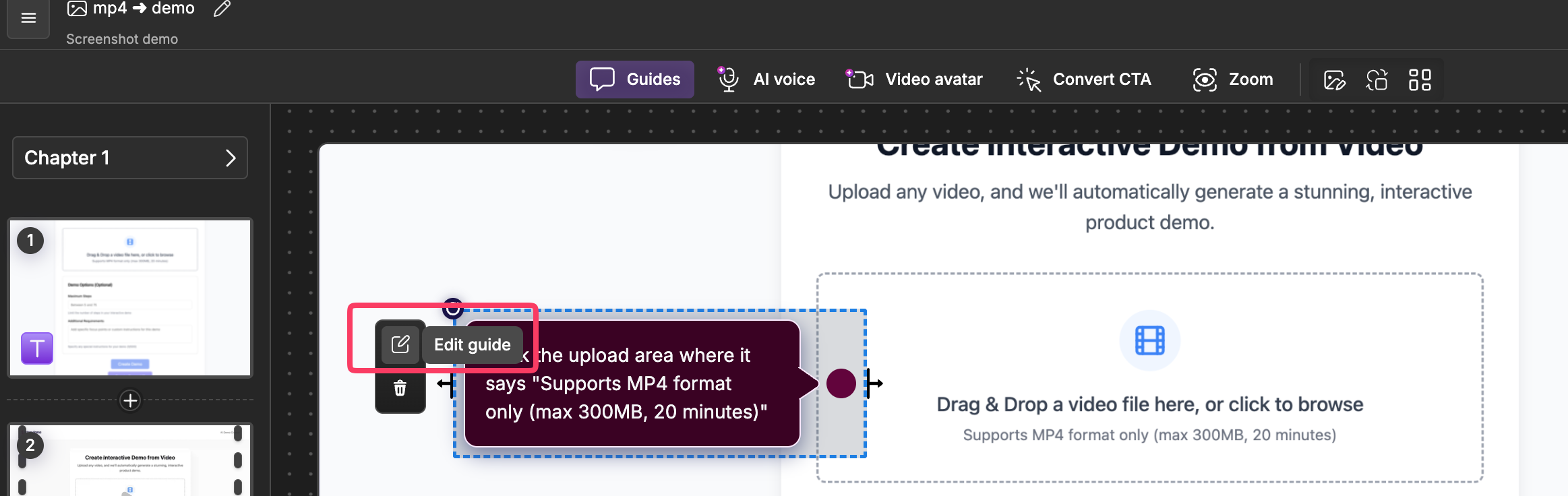
By default, when you add a new step to a screenshot demo, a hotspot is automatically created for you. From there, you can customize the guide in a couple of ways:
* Hover over the existing guide and click “Edit Guide” to make changes directly.
* Use the “Guides” button in the top header (always accessible) to view and manage all guides in your demo.
This gives you flexibility to quickly adjust copy, positioning, and behavior at any time.
### 👉 Editing guided steps
Guides can be customized to match your needs. Hover on the guide and click on the "Edit guide" icon next to it for the following options:
| Edit Guide | Description | Reference |
| ---------- | ------------------------------------------------------------------------------------------------ | ----------------------------------------------------------------------------------------------------------------------------------------------------------------------------------------------------------------------------------------------------------------------------------------------------- |
| Content | Edit in-guide content by selecting the placeholder text |
|
| CTAs | Toggle and customize primary and secondary CTAs |
|
| Position | Configure the arrow positions for hotspots and tooltips |
|
| Config | Toggle step number visibility, previous step button, arrow alignment, and hide text on mouse out |
|
{% hint style="info" %}
Pro tip: Need to copy a step to another chapter? Just select the step you would like to copy from the sidebar and use **Cmd/Ctrl C + Cmd/Ctrl V** to copy and paste into another demo's timeline. You could also do the same by right clicking or select three dots against a step. To duplicate a step, select the step and use **Cmd/Ctrl D**.
{% endhint %}
{% hint style="info" %}
If you need help or have any questions, feel free to contact us at .
{% endhint %}
---
# Agent Instructions
This documentation is published with GitBook. GitBook is the documentation platform designed so that both humans and AI agents can read, navigate, and reason over technical content effectively. Learn more at gitbook.com.
## Querying This Documentation
If you need additional information that is not directly available in this page, you can query the documentation dynamically by asking a question.
Perform an HTTP GET request on the following URL with the `ask` and `goal` query parameters:
```
GET https://docs.storylane.io/editing-demos/adding-and-editing-guided-steps.md?ask=&goal=
```
`ask` is the immediate question: it should be specific, self-contained, and written in natural language.
`goal` is what the user is ultimately trying to achieve, the reason they need the answer. Sharing it helps GitBook give you a better, more relevant answer. A goal is most helpful when it describes the outcome the user wants rather than restating the question. For example, with `ask=how do I create an API token`, a goal like `build a script that syncs our docs to a CMS` lets GitBook tailor the answer to that use case.
The response will contain a direct answer to the question and relevant excerpts and sources from the documentation.
Use this mechanism when the answer is not explicitly present in the current page, you need clarification or additional context, or you want to retrieve related documentation sections.


 |
{% hint style="info" %}
In HTML demos you need to drag guides onto an element, which snaps into place when highlighted green.
{% endhint %}
### 👉 Adding guided steps
Adding guided steps is simple.
By default, when you add a new step to a screenshot demo, a hotspot is automatically created for you. From there, you can customize the guide in a couple of ways:
* Hover over the existing guide and click “Edit Guide” to make changes directly.
* Use the “Guides” button in the top header (always accessible) to view and manage all guides in your demo.
This gives you flexibility to quickly adjust copy, positioning, and behavior at any time.
|
{% hint style="info" %}
In HTML demos you need to drag guides onto an element, which snaps into place when highlighted green.
{% endhint %}
### 👉 Adding guided steps
Adding guided steps is simple.
By default, when you add a new step to a screenshot demo, a hotspot is automatically created for you. From there, you can customize the guide in a couple of ways:
* Hover over the existing guide and click “Edit Guide” to make changes directly.
* Use the “Guides” button in the top header (always accessible) to view and manage all guides in your demo.
This gives you flexibility to quickly adjust copy, positioning, and behavior at any time.