# Managing Team

* [Adding team members](#how-do-i-add-someone-to-my-team)
* [Team roles overview](#team-roles-in-storylane)
* [Role Permission Matrix](#role-permission-matrix)
* [Assigning a new team owner](#how-to-assign-a-new-owner-admin-to-the-team)
* [Reset passwords](#how-do-i-reset-the-my-password)
* [Changing your account's email](#how-do-i-change-the-email-address-of-my-account)
* [Changing the way you sign-in](#how-do-i-change-the-way-i-sign-in)
* [View billing invoice](#view-billing-invoice)

### 👉 How do I add someone to my team?

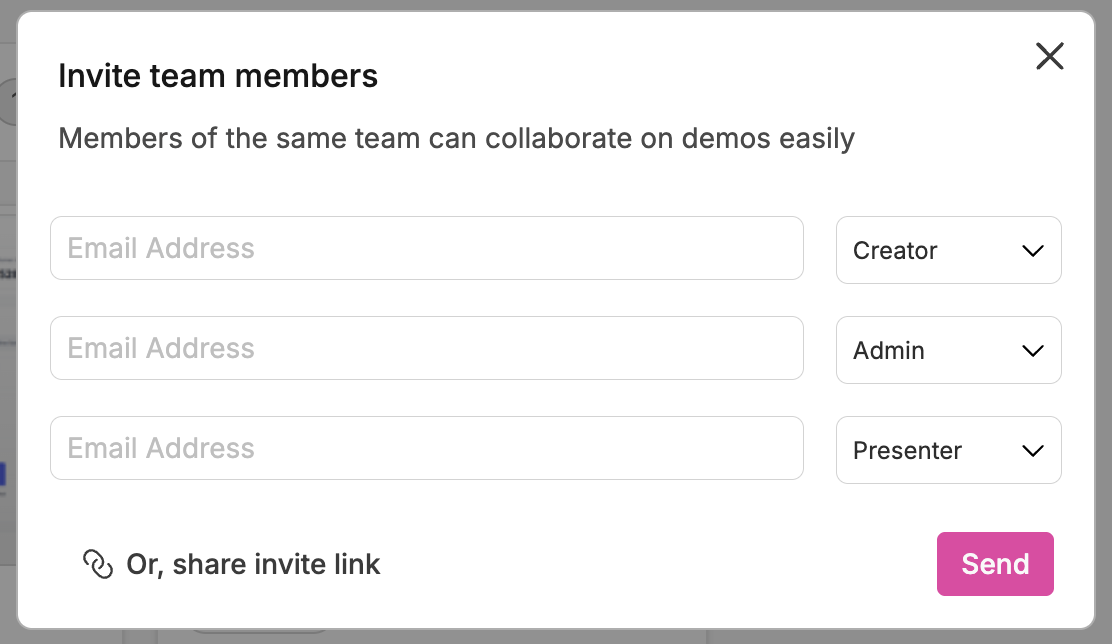
You can invite team members easily through the Storylane settings by following these steps: Within the Settings menu, under the "Team" section, you'll discover two methods for adding new team members:

**Invite by Email**: You have the flexibility to invite multiple people to join you. Type each member's email address and click send. Upon clicking "send", invitations will be dispatched to these individuals, inviting them to become part of your Storylane team.

<div align="left"><figure><img src="https://2431356420-files.gitbook.io/~/files/v0/b/gitbook-x-prod.appspot.com/o/spaces%2FN8hWd9k2Pbb6YSWO4pUQ%2Fuploads%2FCQKpn7i8Ifn4cl3pAdA9%2FScreenshot%202025-11-19%20at%2010.08.11.png?alt=media&#x26;token=4e2c99e2-00c9-4928-a777-01182a6b54da" alt="" width="375"><figcaption></figcaption></figure></div>

**Invite by Link**: To streamline the process of inviting multiple individuals to join your Storylane team, you can duplicate an invite link. When anyone clicks on this link, they will be automatically included in your team. Feel free to share this link via Slack channels, company emails, or other communication channels.

<div align="left"><figure><img src="https://2431356420-files.gitbook.io/~/files/v0/b/gitbook-x-prod.appspot.com/o/spaces%2FN8hWd9k2Pbb6YSWO4pUQ%2Fuploads%2FPP0GK5DlYM4JDw6FHxWk%2FScreenshot%202025-11-19%20at%2010.10.38.png?alt=media&#x26;token=ceed382e-0115-4d88-af0b-565c4c042a00" alt="" width="375"><figcaption></figcaption></figure></div>

### 👉 Team roles in Storylane

Storylane offers three team roles:

1. **Admin/Owner:** Full control
2. **Creator:** Create, edit, and publish demos and demo hubs.
3. **Presenter:** Access and view demos and demo hubs, and create demo links.

### 👉 Role Permission Matrix

<table data-full-width="false"><thead><tr><th width="307">Permission</th><th width="144">Admin/Owner</th><th width="112">Creator</th><th>Presenter</th></tr></thead><tbody><tr><td><strong>Full Control</strong></td><td>Yes</td><td>No</td><td>No</td></tr><tr><td><strong>Inviting Team Members</strong></td><td>Yes</td><td>No (view only)</td><td>No (view only)</td></tr><tr><td><strong>Demo Creation</strong></td><td>Yes</td><td>Yes</td><td>No (view only)</td></tr><tr><td><strong>Demo Editing</strong></td><td>Yes</td><td>Yes</td><td>No (view only)</td></tr><tr><td><strong>Change Demo Settings</strong></td><td>Yes</td><td>Yes</td><td>No (view only)</td></tr><tr><td><strong>Demo Publishing</strong></td><td>Yes</td><td>Yes</td><td>No (view only)</td></tr><tr><td><strong>Demo Sharing</strong></td><td>Yes</td><td>Yes</td><td>Yes</td></tr><tr><td><strong>Create Demo Links</strong></td><td>Yes</td><td>Yes</td><td>Yes</td></tr><tr><td><strong>Demo Hub Creation</strong></td><td>Yes</td><td>Yes</td><td>Yes</td></tr><tr><td><strong>Demo Hub Editing</strong></td><td>Yes</td><td>Yes</td><td>Yes</td></tr><tr><td><strong>Editing Hubs created by Others</strong></td><td>Yes</td><td>Yes</td><td>No</td></tr><tr><td><strong>Demo Hub Publishing</strong></td><td>Yes</td><td>Yes</td><td>Yes</td></tr><tr><td><strong>Publishing Hubs created by Others</strong></td><td>Yes</td><td>Yes</td><td>No</td></tr><tr><td><strong>Demo Hub Sharing</strong></td><td>Yes</td><td>Yes</td><td>Yes</td></tr><tr><td><strong>Create Demo Hub Links</strong></td><td>Yes</td><td>Yes</td><td>Yes</td></tr><tr><td><strong>Connect Integrations</strong></td><td>Yes</td><td>No (view only)</td><td>No (view only)</td></tr><tr><td><strong>Configure SSO</strong></td><td>Yes</td><td>No (view only)</td><td>No (view only)</td></tr><tr><td><strong>Configure Webhooks</strong></td><td>Yes</td><td>No (view only)</td><td>No (view only)</td></tr><tr><td><strong>Change Workspace Settings</strong><br><strong>(</strong><a href="https://app.storylane.io/team/settings"><strong>branding, config, domain...</strong></a><strong>)</strong></td><td>Yes</td><td>No (view only)</td><td>No (view only)</td></tr><tr><td><strong>View/Edit Billing Info</strong></td><td>Yes</td><td>No</td><td>No</td></tr><tr><td><strong>Export Analytics</strong></td><td>Yes</td><td>Yes</td><td>Yes</td></tr></tbody></table>

### When to use Creator and when to use Presenter roles?

👉 **Demo Creator role** is usually for **marketers**, who focus on building demos, without worrying that someone will tweak or delete the data. You have full access to the Storylane dashboard and the Editor.

👉 **Demo Presenter role** is used primarily by **sales teams**, who have view-only access, which includes the ability to create individual demo links for each prospect, and secure them, personalize, and track demo-specific engagement.

See how it works in the interactive demo below 👇

{% @storylane/embed subdomain="app" linkValue="nscgubcjtrsc" url="<https://app.storylane.io/share/nscgubcjtrsc>" %}

### 👉 How to add or remove a team member from multiple workspaces?

<div align="left"><figure><img src="https://2431356420-files.gitbook.io/~/files/v0/b/gitbook-x-prod.appspot.com/o/spaces%2FN8hWd9k2Pbb6YSWO4pUQ%2Fuploads%2FPtuu5VccENi8huP0V2sT%2FScreenshot%202025-11-19%20at%2010.12.15.png?alt=media&#x26;token=27c46fcb-e89f-47b3-9d66-a95f963a7f4d" alt="" width="563"><figcaption></figcaption></figure></div>

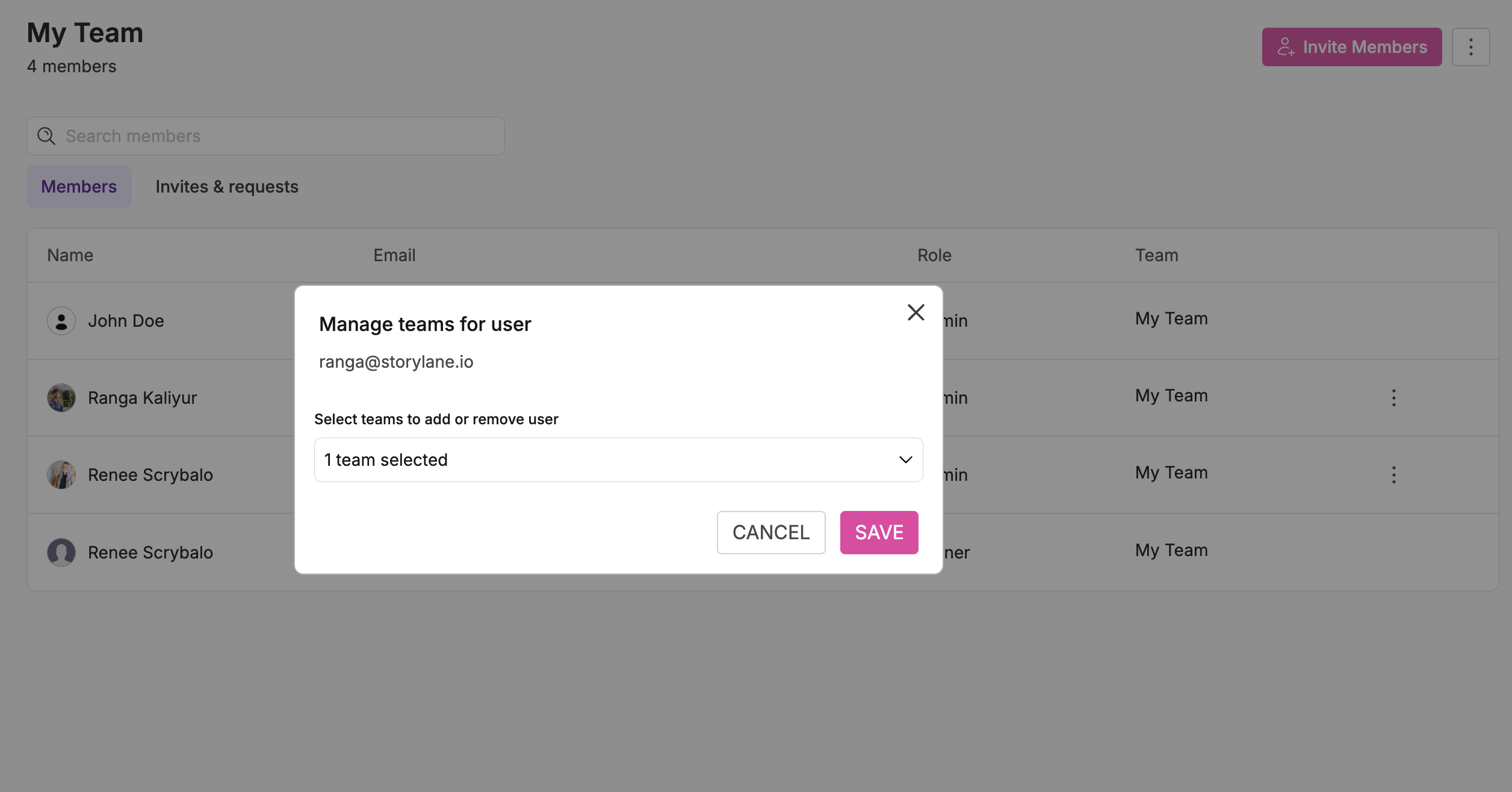
1. Open Storylane > go to "Settings" > click on "Team".
2. Find the user you want to add/remove to other teams > Click on the 3-dots menu > Click 'Manage Teams' and assign or remove the user from the specific team(s).

### 👉 How to assign a new owner (admin) to the team?

<div align="left"><figure><img src="https://2431356420-files.gitbook.io/~/files/v0/b/gitbook-x-prod.appspot.com/o/spaces%2FN8hWd9k2Pbb6YSWO4pUQ%2Fuploads%2Ffc4bIdhkOWzyhzkrFIEL%2FScreenshot%202025-11-19%20at%2010.13.30.png?alt=media&#x26;token=e9a3f6bc-742e-415a-a7a5-408273909f06" alt="" width="563"><figcaption></figcaption></figure></div>

1. Open Storylane > go to "Settings" > click on "Team".
2. Find the user you wish to assign as the new owner > Click on the 3-dots menu (usually found at the end of the user's row) > Click 'Edit Role' > Set the permission to 'Admin'.

### 👉 How do I reset my password?

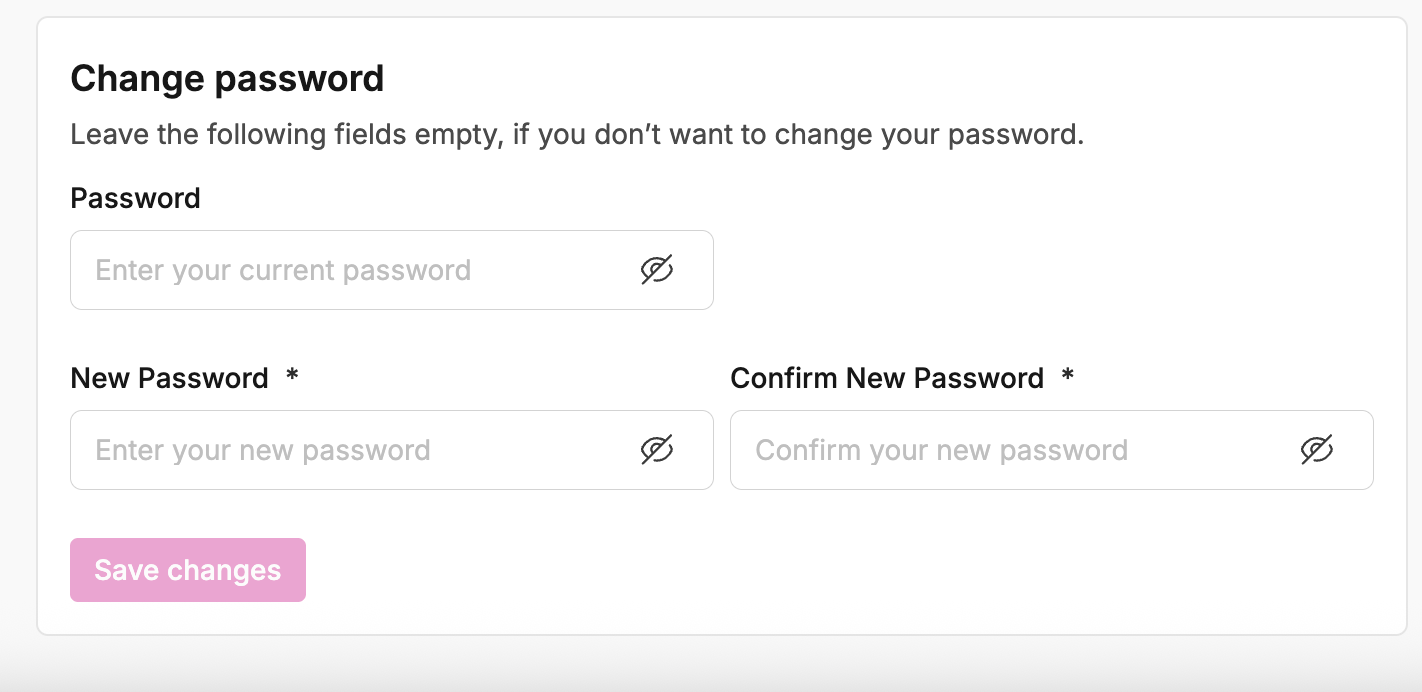
To reset your password, head to Profile Settings, scroll down to change password, type in your current password, confirm your new password, and hit save.

<div align="left"><figure><img src="https://2431356420-files.gitbook.io/~/files/v0/b/gitbook-x-prod.appspot.com/o/spaces%2FN8hWd9k2Pbb6YSWO4pUQ%2Fuploads%2FfaxAEBZnoUqQDz0AS645%2FScreenshot%202025-11-19%20at%2010.15.43.png?alt=media&#x26;token=efece267-59b2-4fdf-b82c-e8c0f9d5ffe7" alt="" width="563"><figcaption></figcaption></figure></div>

### 👉 How do I change the email address of my account?

To change your account's email address or update your billing email, please contact us at <support@storylane.io>.&#x20;

### 👉 How do I change the way I sign-in?

If you're currently using SSO and want to explore other authentication options, please reach out to our support team for assistance with your specific situation.

### 👉 View billing invoice

Your email invoice will be the email you used when setting up your account. You can also view your invoice under your 'Profile' > 'Billing' > 'Manage billing' >  'View billing invoices'. \
Still not receiving the link via email? Please reach out to <support@storylane.io>

<figure><img src="https://2431356420-files.gitbook.io/~/files/v0/b/gitbook-x-prod.appspot.com/o/spaces%2FN8hWd9k2Pbb6YSWO4pUQ%2Fuploads%2FXiljPd3rR4IhhpaEFKGi%2FScreenshot%202025-11-19%20at%2010.17.53.png?alt=media&#x26;token=841790e0-b55d-4c87-9125-9cc9b3512ce5" alt=""><figcaption></figcaption></figure>

{% hint style="info" %}
If you need help or have any questions, feel free to contact us at <support@storylane.io>.
{% endhint %}