> For the complete documentation index, see [llms.txt](https://docs.storylane.io/llms.txt). Markdown versions of documentation pages are available by appending `.md` to page URLs; this page is available as [Markdown](https://docs.storylane.io/tips-and-tricks/is-it-possible-to-connect-a-linkedin-tracking-pixel-to-storylane.md).
# Is it possible to connect a LinkedIn tracking pixel to Storylane?
### **Steps to Add a LinkedIn Tracking Pixel to Storylane:**
1. **Get Your LinkedIn Insight Tag Code**:
* Log in to your LinkedIn Campaign Manager account.
* Go to **Account Assets** and select **Insight Tag**.
* Copy the provided JavaScript code, which will look something like this:
```javascript
```
2. **Add the Code to your Storylane Demo**:
1. For an ***HTML*** Demo - Navigate to Demo Settings > Custom Code > Web Frame
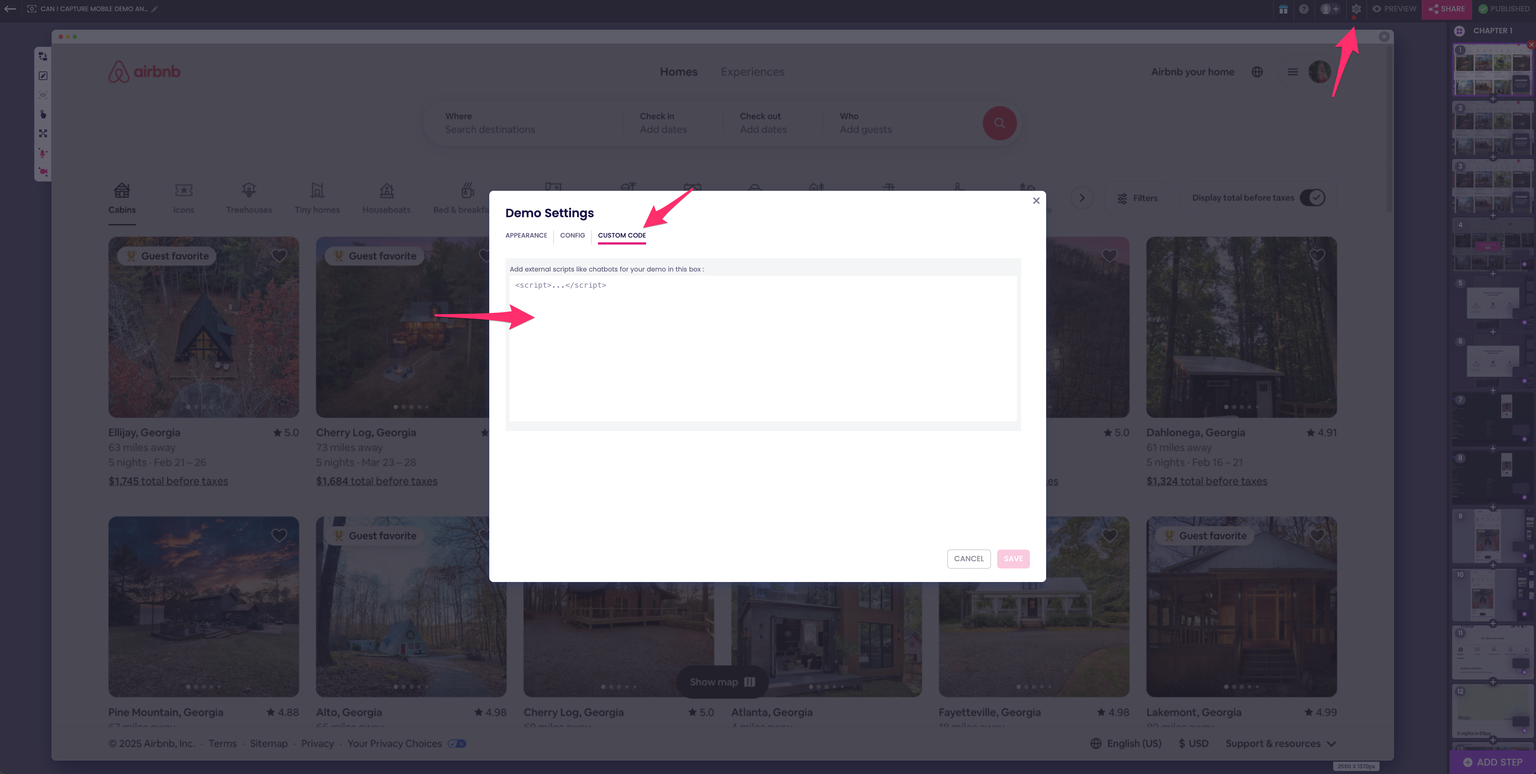
2. For a ***Screenshot*** Demo - Navigate to Demo Settings > Custom Code
* S**creenshot Demo Example**:
* **HTML Demo Example**:
{% hint style="warning" %}
Important Storylane Terminology!
* **Demo Frame**: Defines the **scope of the demo itself**—what the end-user will interact with. It captures only the relevant part of the webpage that is included in the demo experience.
* **Web Frame**: Represents the broader **Storylane-related scope**, including elements used for internal functionality but **not visible or relevant to the customer demo**. For **SS demos**, the **default script is already inserted into the Web Frame**, ensuring the necessary setup is in place.
{% endhint %}
3. **Verify Tag Activation**: After adding the Insight Tag, you can verify that it’s working by:
* Going back to your LinkedIn Campaign Manager and checking if the pixel is receiving data.
**Benefits of Using LinkedIn Tracking Pixel with Storylane**:
* **Retargeting**: You can retarget users who have interacted with your demos.
* **Conversion Tracking**: Measure the effectiveness of your LinkedIn campaigns in driving engagement with your Storylane demos.
* **Audience Insights**: Learn more about your demo viewers through LinkedIn’s data, which can help tailor future campaigns.
---
# Agent Instructions
This documentation is published with GitBook. GitBook is the documentation platform designed so that both humans and AI agents can read, navigate, and reason over technical content effectively. Learn more at gitbook.com.
## Querying This Documentation
If you need additional information that is not directly available in this page, you can query the documentation by asking a question.
Perform an HTTP GET request on the following URL with the `ask` and `goal` query parameters:
```
GET https://docs.storylane.io/tips-and-tricks/is-it-possible-to-connect-a-linkedin-tracking-pixel-to-storylane.md?ask=&goal=
```
`ask` is the immediate question: it should be specific, self-contained, and written in natural language.
`goal` is what the user is ultimately trying to achieve, the reason they need the answer. Sharing it helps GitBook give you a better, more relevant answer. A goal is most helpful when it describes the outcome the user wants rather than restating the question. For example, with `ask=how do I create an API token`, a goal like `automate deployments from our CI pipeline` lets GitBook tailor the answer to that use case.
The response will contain a direct answer to the question and relevant excerpts and sources from the documentation.
Use this mechanism when the answer is not explicitly present in the current page, you need clarification or additional context, or you want to retrieve related documentation sections.