> For the complete documentation index, see [llms.txt](https://docs.storylane.io/llms.txt). Markdown versions of documentation pages are available by appending `.md` to page URLs; this page is available as [Markdown](https://docs.storylane.io/hubs-docs/integrations/integrations/marketo.md).
# Marketo
Storylane integrates seamlessly with Marketo, enabling you to:
* Sync demo data with existing leads.
* Automatically create new leads if they don’t exist.
* Log demo session activity on the Marketo timeline.
* Capture leads directly via Marketo forms.
{% hint style="warning" %}
You must have **admin** level permissions to connect any integrations within Storylane
{% endhint %}
Follow these step-by-step instructions to set up the integration:
***
## **Step 1: Add the Storylane Code to Your Website (Optional)**
This step enables lead attribution tracking. Add the following code snippet to the `` tag of your website:
```javascript
(function(){"use strict";function e(t){const r=t.head;if(!r)return;const i=t.querySelector('script[src="https://js.storylane.io/js/v2/storylane.js"]'),n=t.querySelector('script[src="https://js.storylane.io/js/v1/storylane.js"]');if(i||n)return;const s=t.createElement("script");s.type="text/javascript",s.async=!0,s.src="https://js.storylane.io/js/v2/storylane.js",r.appendChild(s)}e(window.document)})();
```
> 💡 Learn more about lead attribution [here](https://docs.storylane.io/storylane-knowledge-base/tracking-and-analysing/lead-attribution).
***
## **Step 2: Connect Marketo with Storylane**
{% @storylane/embed subdomain="app" linkValue="4qiydc3vwvzz" url="" %}
1. Access the **Marketo Integration** section in your Storylane dashboard under **Settings > Integrations**.
2. Click the **Connect** button.
3. **Prepare for Integration:**
* Ensure you have **1 free Custom Activity** available (required).
* Assign the correct API user during setup. The user must have the following permissions:
* Read-Write Activity
* Read-Write Activity Metadata
* Read-Write Person
* Read-Write Schema Custom Field
* Read-Write Schema Standard Field
4. **Configure Marketo:**
* Support will provide a secure URL for configuration.
* Open the URL and click **Configure Marketo.**
* Enter the required credentials:
* Client ID
* Client Secret
* Endpoint URL
* Identity URL
***
### **What Data Does Storylane Sync to Marketo?**
{% hint style="warning" %}
⚠️ *Important:* Do not manually create lead fields in Marketo. Storylane automatically creates the necessary fields with the correct API names when you connect your account. Manual creation may result in broken integrations.
{% endhint %}
#### **Custom Properties**
Storylane automatically syncs demo data to Marketo under custom fields. Here's the data included:
| **Property Name** | **Description** | **Data Type** |
| ---------------------------------- | ---------------------------------- | ------------- |
| Storylane Demo Name | Last demo viewed | String |
| Storylane Demo Viewed At | Last demo view timestamp | DateTime |
| Storylane Demo Time (secs) | Time spent on demo (seconds) | Number |
| Storylane Demo Complete (%) | Percentage of steps completed | Number |
| Storylane Demo Link | Link to the demo | String |
| Storylane Demo CTA Clicked | CTA URL clicked | String |
| Storylane Demo Checklist Completed | Indicates if the checklist is done | Boolean |
| Storylane Demo Sessions | Total number of demo sessions | Integer |
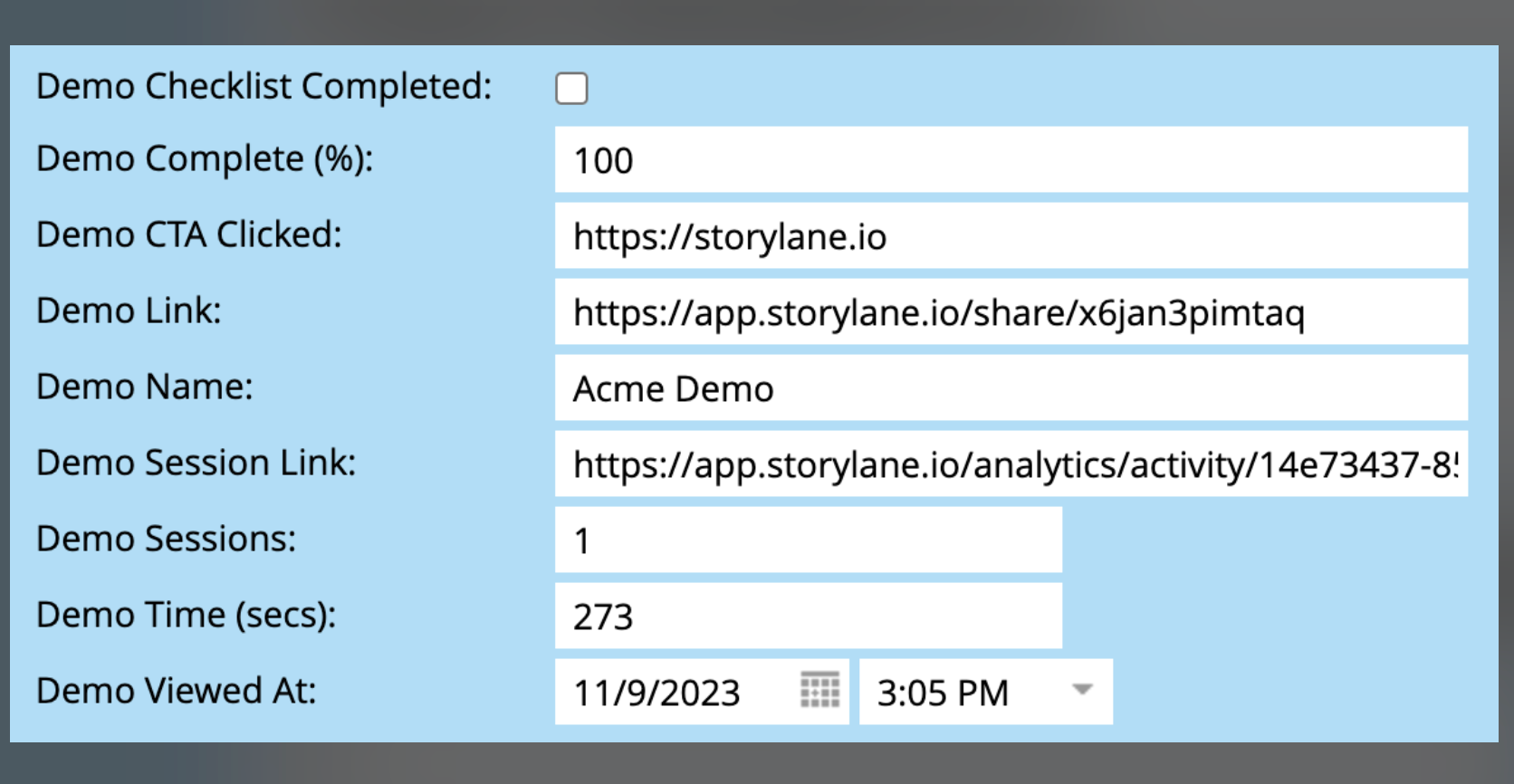
Here’s a reference showing how this data appears for your lead in Marketo.
***
#### **Custom Activities**
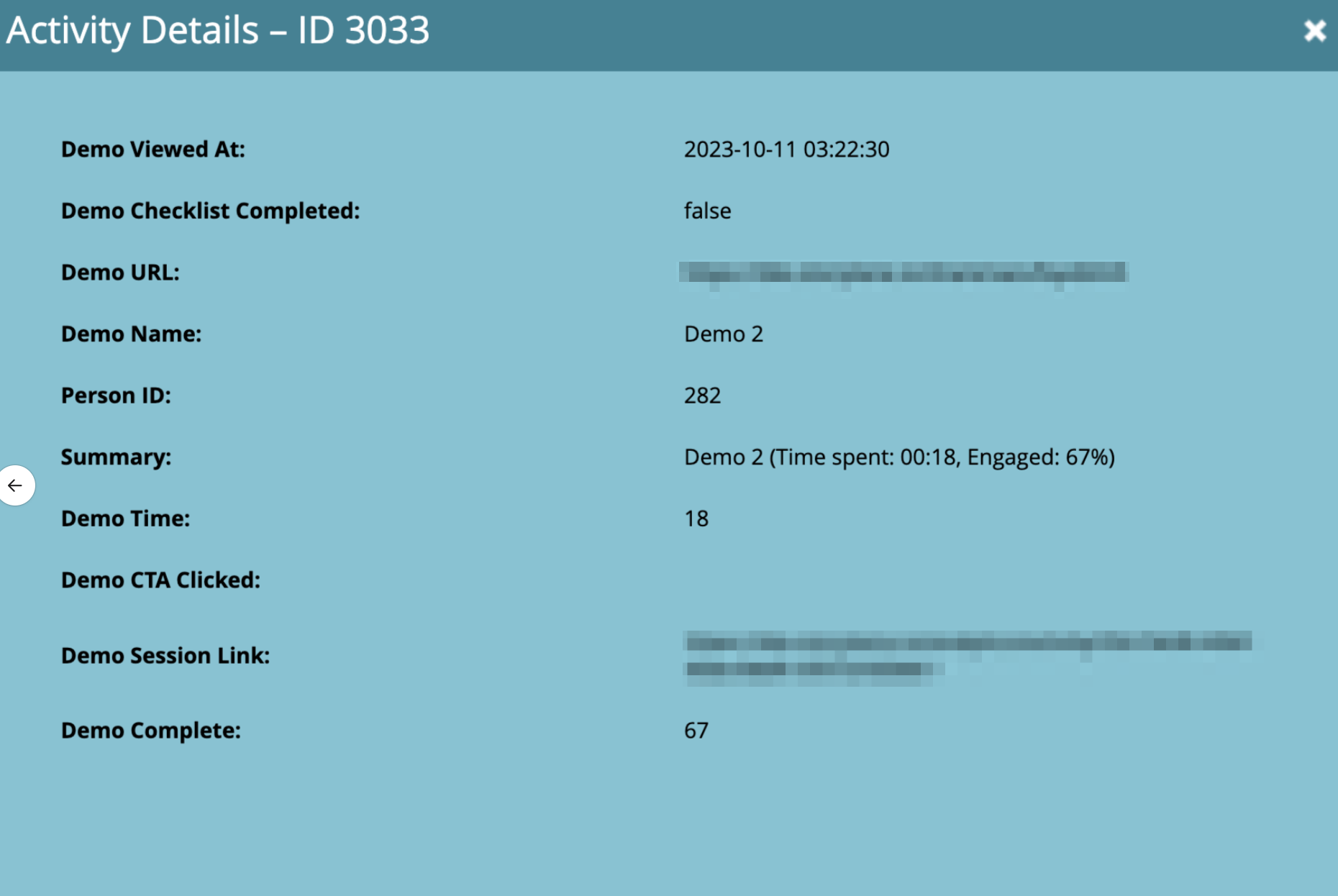
Each demo session creates a custom activity in Marketo. This includes detailed demo engagement data for the lead.
Here’s a reference showing how this activity looks in Marketo.
***
By following these steps, you can integrate Storylane with Marketo to enhance lead tracking and demo engagement insights effortlessly.
---
# Agent Instructions
This documentation is published with GitBook. GitBook is the documentation platform designed so that both humans and AI agents can read, navigate, and reason over technical content effectively. Learn more at gitbook.com.
## Querying This Documentation
If you need additional information that is not directly available in this page, you can query the documentation dynamically by asking a question.
Perform an HTTP GET request on the current page URL with the `ask` query parameter, and the optional `goal` query parameter:
```
GET https://docs.storylane.io/hubs-docs/integrations/integrations/marketo.md?ask=&goal=
```
`ask` is the immediate question: it should be specific, self-contained, and written in natural language.
`goal` is optional and describes the broader end goal you are ultimately trying to accomplish on behalf of the user. GitBook uses it to tailor the answer towards what is most useful for that goal.
The response will contain a direct answer to the question and relevant excerpts and sources from the documentation.
Use this mechanism when the answer is not explicitly present in the current page, you need clarification or additional context, or you want to retrieve related documentation sections.